# Step Functions for making your text based images searchable
[AWS Step Functions](https://aws.amazon.com/step-functions/) helps with workflow orchestration with low-code and visual editor available on the AWS web-console. Step Functions had an important announcement which allowed 200+ AWS Services to be integrated with AWS SDK, you can read about the [announcement](https://aws.amazon.com/about-aws/whats-new/2021/09/aws-step-functions-200-aws-sdk-integration/).
In this blog-post we will look into two such SDK integrations with Step Functions - [**Amazon Textract**](https://aws.amazon.com/textract/) and [**Amazon DynamoDB**](https://aws.amazon.com/dynamodb/).
My previous blog posts, gives an introduction to Textract.
{%post https://dev.to/aws-builders/amazon-textract-with-expense-analyzing-516b %}
To understand Step Functions' *Workflow Studio*, you can check out Sebastian Bille's (@tastefulelk) blog-post
{%post https://dev.to/aws-builders/step-functions-workflow-studio-with-serverless-framework-4j8m %}
### Key take-aways from the blog
+ [Step Functions with Textract SDK integrations](#textract-sdk)
+ [Step Functions with DynamoDB SDK integrations](#dynamodb-sdk)
### Workflow overview
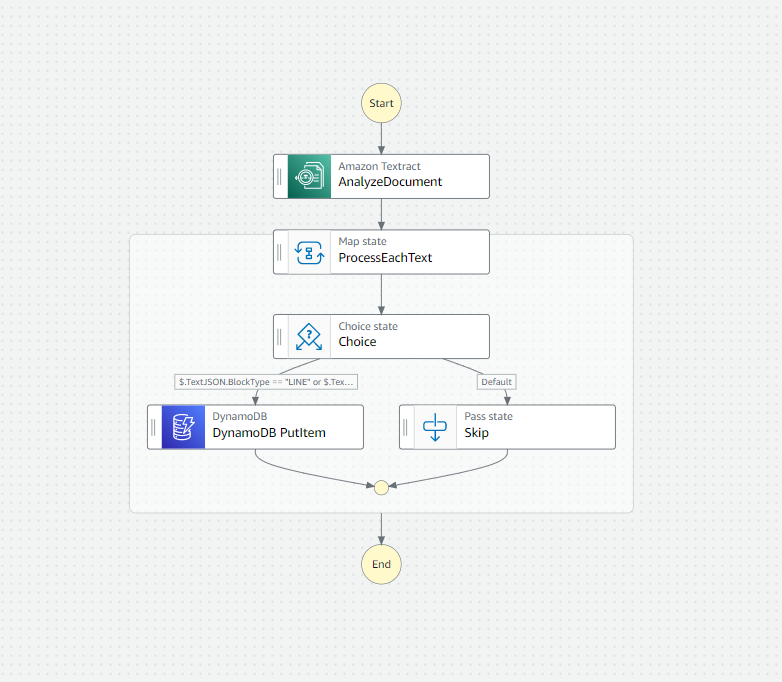
The workflow is simple and could be invoked from the web console with parameters - `DocumentName` and `BucketName` which are also the parameters used for *Textract*.
```bash
{
"Comment": "Step Functions for making your text based images searchable which uses Textract and DynamoDB SDK intergrations",
"StartAt": "AnalyzeDocument",
"States": {
"AnalyzeDocument": {
"Type": "Task",
"Parameters": {
"Document": {
"S3Object": {
"Bucket": "$.BucketName",
"Name.$": "$.DocumentName"
}
},
"FeatureTypes": [
"FORMS"
]
},
"Resource": "arn:aws:states:::aws-sdk:textract:analyzeDocument",
"ResultPath": "$.params.TextractResult",
"Next": "ProcessEachText"
},
"ProcessEachText": {
"Type": "Map",
"Parameters": {
"TextIndex.$": "$$.Map.Item.Index",
"TextJSON.$": "$$.Map.Item.Value",
"DocumentName.$": "$.DocumentName"
},
"Iterator": {
"StartAt": "Choice",
"States": {
"Choice": {
"Type": "Choice",
"Choices": [
{
"Or": [
{
"Variable": "$.TextJSON.BlockType",
"StringEquals": "LINE"
},
{
"Variable": "$.TextJSON.BlockType",
"StringEquals": "WORD"
}
],
"Next": "DynamoDB PutItem"
}
],
"Default": "Skip"
},
"DynamoDB PutItem": {
"Type": "Task",
"Resource": "arn:aws:states:::aws-sdk:dynamodb:putItem",
"Parameters": {
"TableName": "TextractKeywordsDB",
"Item": {
"pk": {
"S.$": "$.DocumentName"
},
"sk": {
"S.$": "$.TextJSON.Text"
}
}
},
"End": true
},
"Skip": {
"Type": "Pass",
"End": true
}
}
},
"ItemsPath": "$.params.TextractResult.Blocks",
"End": true,
"ResultPath": "$.TranslatedText"
}
}
}
```
#### Amazon Textract : AnalyzeDocument
In this step, we would be extracting all the textual data from a image stored on S3 bucket in the same account.
#### Map State : ProcesEachText
We would have to loop with the `Blocks` which is returned from Textract as a response.
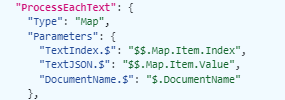
The inputs from previous step to Maps is defined with `parameters`.
#### Choice
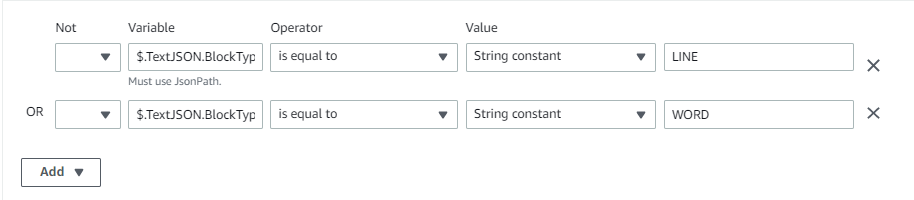
For each item in `Block`, we will validate if that item has `BlockType` value either as *LINE* or *WORD*. If the condition matches, it proceeds to the DynamoDB step else it will just pass the item.
#### DynamoDB : PutItem
For the items which have `BlockType` value either as *LINE* or *WORD*, they are the one which have textual data so we will use the `Text` to write into DynamoDB.
### Step Functions with Textract SDK integrations
With Textract SDK, we would be using `AnalyzeDocument` SDK API to get the text from a image stored on S3 bucket. This API requires the `Document` as input which has details such as `Bucket` name and `Name` stored on S3. Also it requires `FeatureTypes` which commands Textract to extract text with a form base or table base.
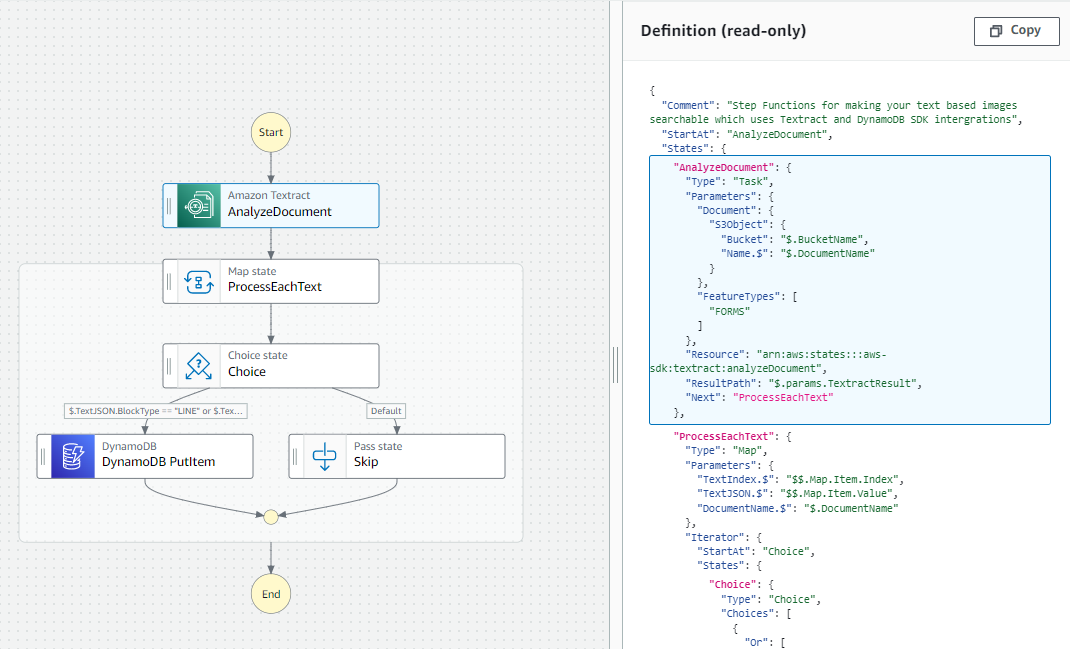
Workflow Studio, also shows the JSON definition of the step where the parameters from StepFunction input is mapped to SDK API input. The result path is also defined as it would be helpful for the Map State to look into the `Blocks` list.
Note : Step Functions role would create `textract:analyzedocument` with `ALLOW` action.
### Step Functions with DynamoDB SDK integrations
DynamoDB SDK allows us to insert the records into DynamoDB table *TextractKeywordsDB* with the `pk` as the document key itself and `sk` as the keyword which is detected from Textract.
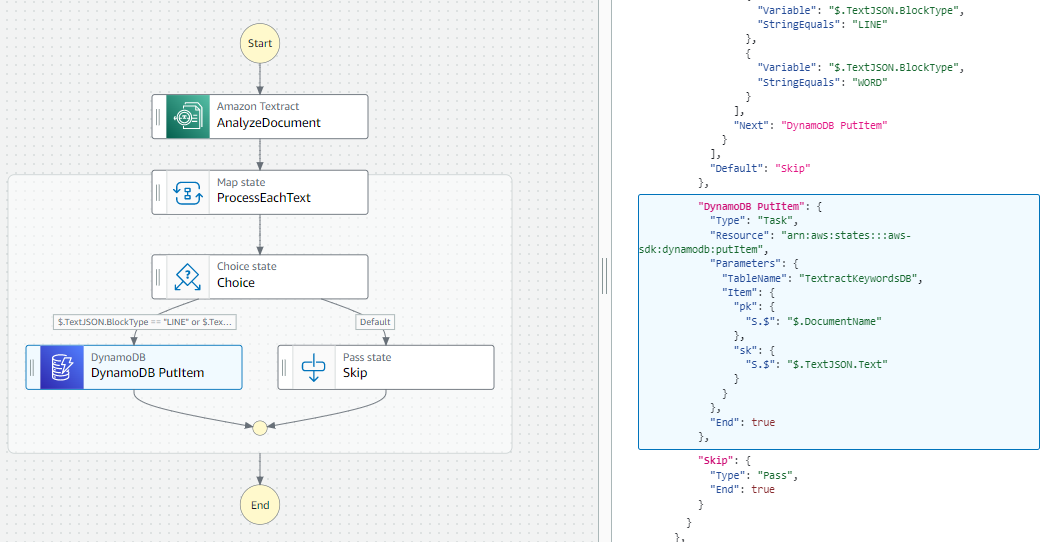
The JSON definition shows how the parameters are mapped with each item of the Map's iterator.
Note : Step Functions role would create `dynamodb:putitem` with `ALLOW` action.
### Executions view
The **AnalyzeDocument** step when the status changes to *Succeeded*, it would show the step's output which is the JSON which Textract returns along with the metadata of each text detected.
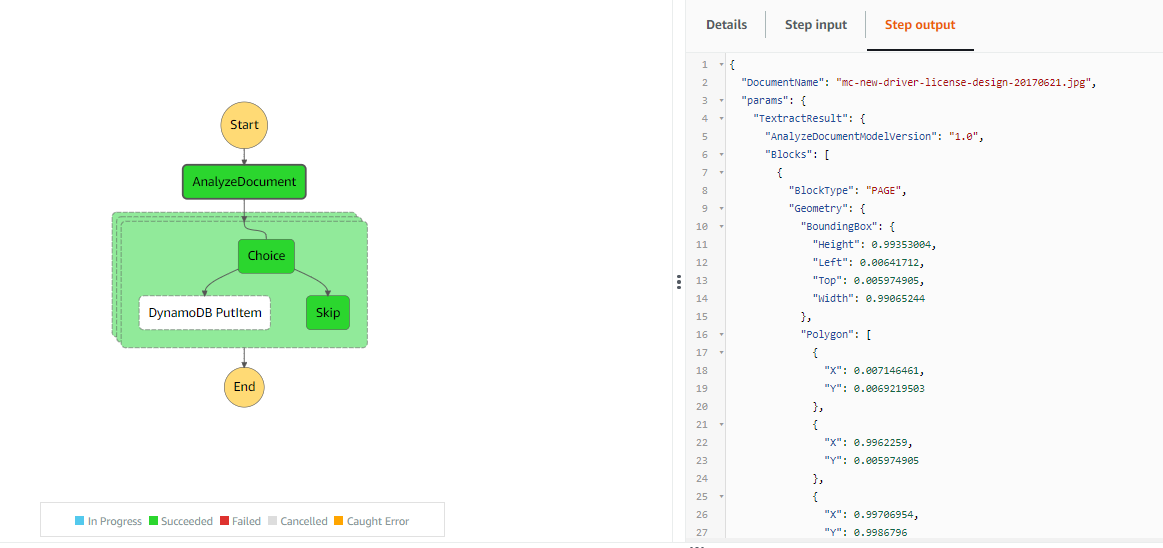
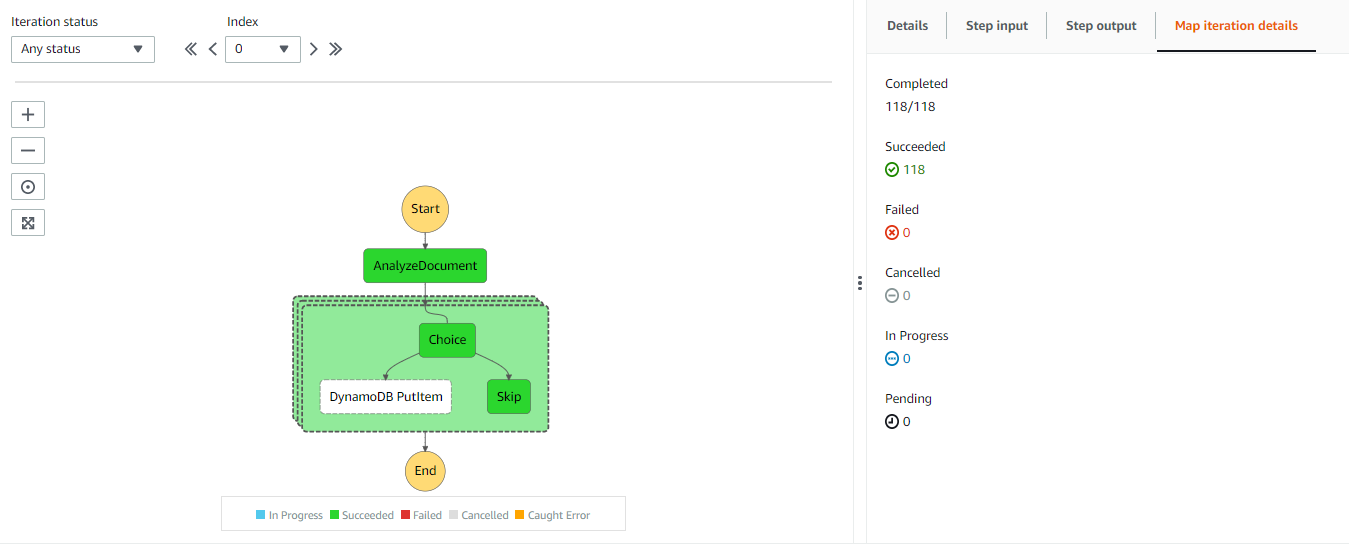
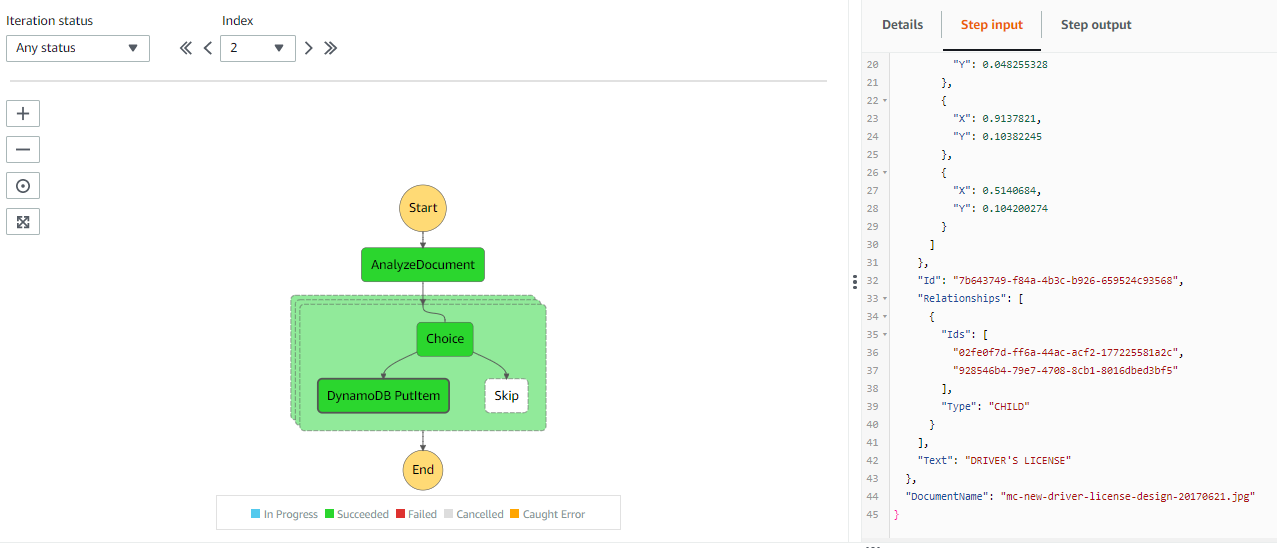
Whenever a map step is involved, along with the output of the complete Map execution, it also provides *Map iteration details* which gives the overall details of how many iterations were completed, succeeded, failed, cancelled, in progress and pending.
We can also navigate through all the items of the map's iterator and view each execution details. For the one which *Choice* condition is satisfied, DynamoDB PutItem step is invoked and also successfully completed.
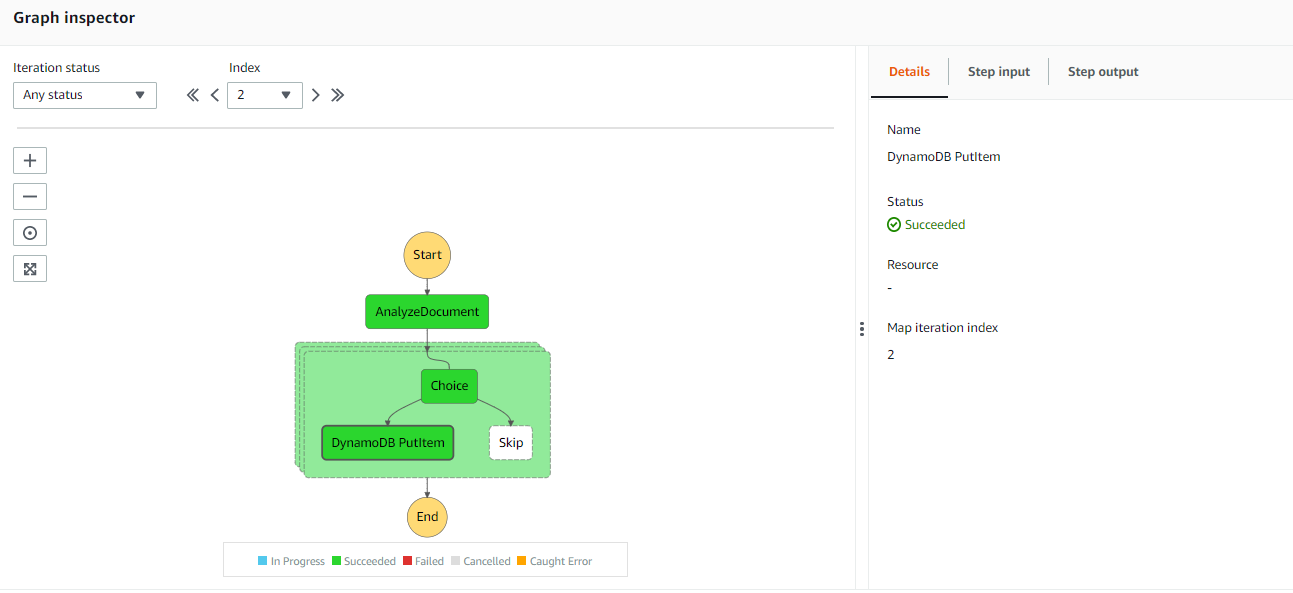
During the *DynamoDB* step we can view the details of what inputs was passed to the step and you can understand how the JSON mapping would have worked in that iteration.
### DynamoDB queries
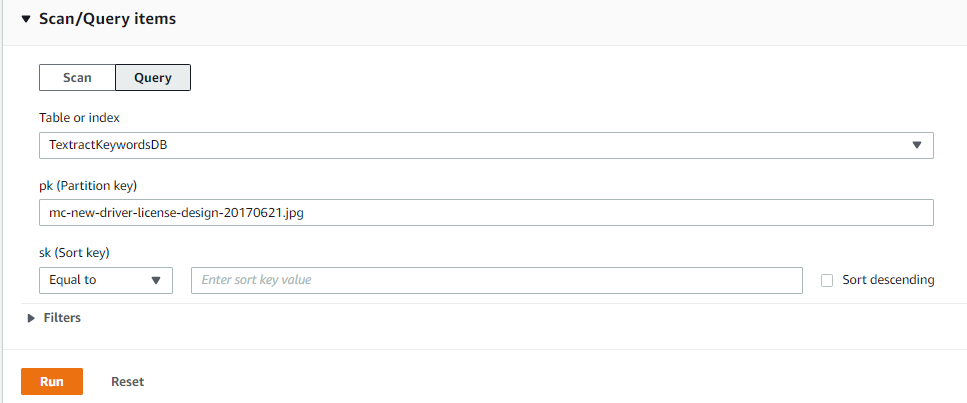
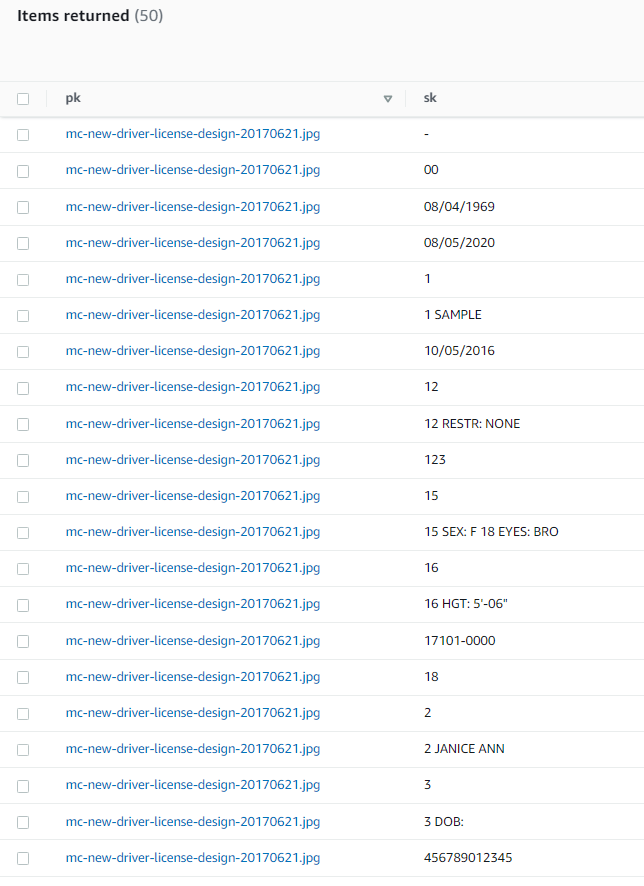
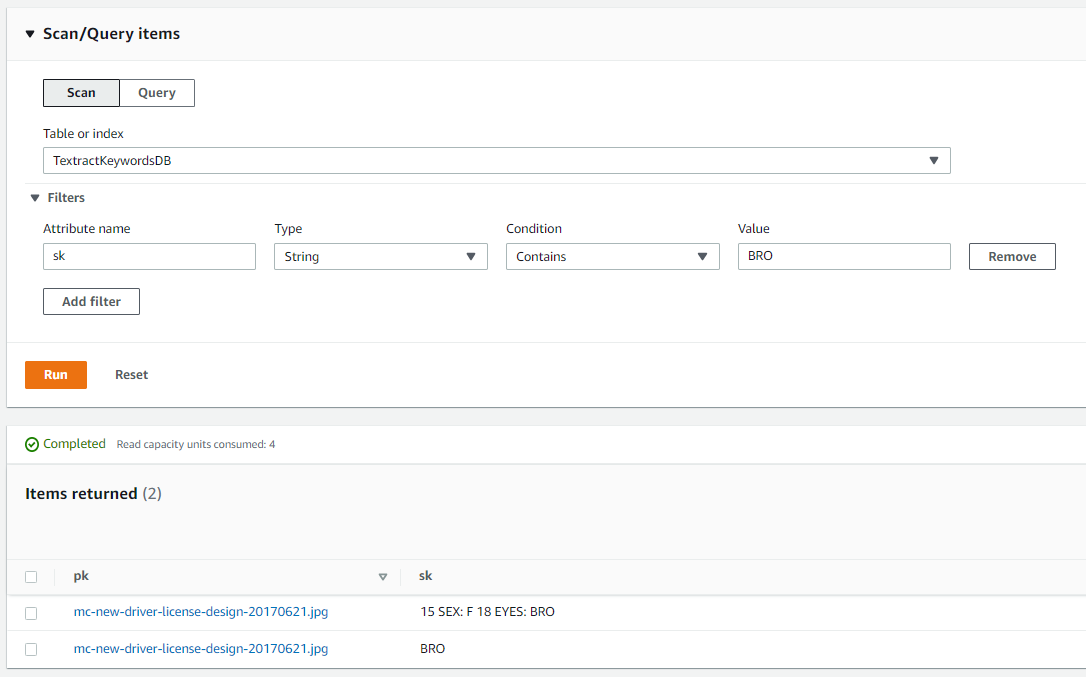
Once the execution is completed, all the text which is extracted from the document itself, you can find it in DynamoDB. And then you can build your DynamoDB `query` and `scan` which suits the search need.
#### Getting all the keywords of an image
#### Getting all the images which matches the keyword
### Conclusion
With Step Function and SDK integration it becomes a seemless low-code integration for your serverless workflows as explained in this blog-post. This also eliminates having Lambda functions which would be processing all of these.